







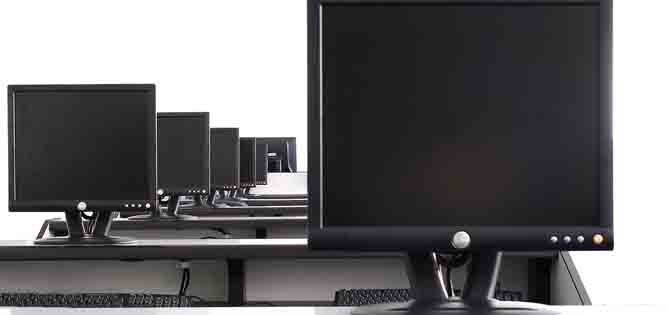

Getting to know your computer better!

The best way to improve and maximise efficiency in the work environment is by having properly trained, and computer savvy personnel that will help you achieve your company goals.

Understanding Pc Specifications

Help button 2024

Do you want to buy a computer, or you already have purchased one? Do you have any idea the specifications of your computer? This is a guide to understanding the features of your computer. What good is it purchasing a computer only to find out it cannot really do what you intended it for?

SPECIFICATION AND WHAT IT MEANS –
Windows Based PCs. (Mac Specifications may differ).

1. HP Pavilion or Dell Latitude.
The brand and model of the computer. HP stands for Hewlett Packard.

2. Windows 10 Pro, Windows 11 Home, macOS Sonoma.
This is the Operating System. You can have 32 bits or 64 bits.

3. 11th Generation Intel® Core™ i7-13700HX AMD Ryzen 5 4500 – 3.90GHz Apple M3 Pro chip.
The Class of CPU – Central Processing Unit. (Integrated Electronics, Advanced Micro Devices).

4. 16 GB DDR5-4800 SDRAM (2 x 8 GB).
The type, and amount of memory the computer has.

5. 1 TB PCIe® NVMe™ TLC M.2 SSD (4×4 SSD) or 500GB HDD.
The storage capacity of the computer. SSD – Solid State Drives load up to 5x faster than the HDD – Hard Disk Drives storage media. Higher models have storage capacity in Terabytes.

6. Intel UHD Graphics.
The type of GPU – Graphics Processing Unit – (distinct from CPU). This can determine what type of games/software can be played on the computer.

7. Webcam specifications.
HP True Vision 1080p FHD IR camera with temporal noise reduction and integrated dual array digital microphones

8. 16″ diagonal, WQXGA (2560 x 1600), mini-LED, 240 Hz, UWVA, micro-edge, anti-glare, Low Blue Light, 1180 nits. (WQXGA – Wide Quad Extended Graphics Array).
The resolution (number of pixels – picture elements) and screen size of the monitor – measured diagonally in inches.

9. Intel® Wi-Fi 6E AX211 (2×2) and Bluetooth® 5.3 wireless card. (Wi-fi – Wireless Fidelity)
Wireless Fidelity and Bluetooth functionality.

10. External I/O Ports.–1 USB Type-A 5Gbps signaling rate; 1 USB Type-A 5Gbps signaling rate (HP Sleep and Charge); 2 Thunderbolt™ 4 with USB Type-C® 40Gbps signaling rate (USB Power Delivery, DisplayPort™ 1.4, HP Sleep and Charge); 1 HDMI 2.1; 1 RJ-45; 1 AC smart pin; 1 headphone/microphone combo, HDMI (High-Definition Multimedia Interface).
The type and number of ports available for external appliances to be plugged in. (A Port is the part of a computing device available for connection to peripherals)

11. Fingerprint reader.
Biometrics as a security measure.

12. Microsoft® 365 Personal 1 Year / McAfee Online Protection 30-day trial.
Pre-installed software that comes with the purchase of the computer.

Present day software needs internet activation, and registration to enable you to use the software. Newer laptops sport a slim look, and do not provide you with an optical drive. which you may have to purchase separately.

The System Unit

The system unit is the core of a computer system. Usually it’s a rectangular box as a Tower, Desktop, Portable or Integrated type. Inside this box are many electronic components that process information. The most important of these components is the central processing unit (CPU), or microprocessor, which acts as the “brain” of your computer. Another component is random access memory (RAM), which temporarily stores information that the CPU uses while the computer is on. The information stored in RAM is erased when the computer is turned off. Almost every other part of your computer connects PORTS on the system unit using cables. The cables plug into specific ports (openings), typically on the back of the system unit.
Hardware that is not part of the system unit is sometimes called a peripheral device or device.
Small Form Factor is an attempt by casing designers to make the sizes of desktop pc casing as small as possible, without compromising on functionality.

The Monitor - Output Unit

Output device

This is an output device used for viewing your work.
The screen resolution describes the number of pixels (picture elements) horizontally spanning the screen by the number of pixels vertically spanning the screen.( e.g.1024 x 768) (A pixel is a tiny dot that makes up the image displayed on the screen).
The dot pitch measures in millimetres, the distance between pixels on a computer monitor. The smaller the dot pitch, the sharper the image. A comfortable dot pitch is between .28 and .31 millimetres.

Memory versus Storage

Header image

One of the most important things you should understand is the difference between memory and storage. Even on your phones there is a difference which many are not aware of. Many users mistake storage space for memory.

A hard drive is a place where you can store programs and other information inside your phone/PC.

When you buy and install programs or apps, you’re copying the program contents to your phone/PC’s storage, not to memory.
Computer memory in general refers to your random-access memory (RAM), a place that your phone/PC temporarily keeps the information that it’s working on.
Another big difference between storage and actual memory is that the CPU (the chip that acts as the ‘brain’ of the PC) only has quick, direct access to whatever is in those mega/gigabytes of RAM memory – it can’t see the hard disk drive. The only way (the CPU) can work with a program is after that program is copied from the storage drive onto RAM memory.

After the CPU is through calculating and working with the information currently in RAM, then it can put the information back on the storage drive. But during the time the calculating is happening, it’s all happening between the CPU and RAM.

HOW TO LEARN ABOUT COMPUTERS

Learning everything you want to know about computers may take a while, but you can fairly quickly learn enough to get some work done.

(1) Assume that you have the capacity to do this:
You don’t need to be good at math’s, nor need mechanical aptitude. You do however, need some patience. And you need enough self-confidence and determination not to give up when something doesn’t work the first (or even 2nd or 3rd) time you try it.
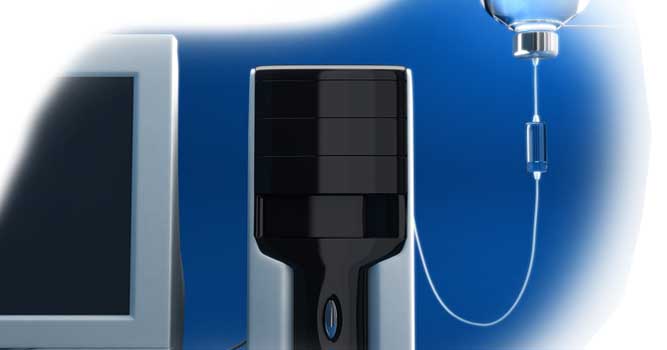
Desktop computer

(2) Acquire New Knowledge in Bite-size pieces:
Don’t try to read and absorb everything at once. Instead, learn only as much as you can comfortably assimilate in a single session, and then review and/or practice until you have mastered the material. Then go back and learn some more.

(3) Cultivate curiosity:
The best way to get really good at computers is to experiment, to question, to wonder if you can do ‘X’ or what would happen if you did ‘Y’. Don’t just passively accept what you read, try to figure out at least some things on your own.

(4) Make it Concrete:
Wherever possible, try or put at least some of the information or skills you acquire to Immediate use. You new Knowledge is much more likely to “stick” if you find some way to put it to work.

(5) When in Doubt, Don’t panic:
Your aim, in learning about P.C’s should not be to avoid mistakes, but to discover what to do when they happen.
The MOUSE & Other Pointing Devices.

A mouse is a handheld pointing device that lets you select and move items on your screen. It helps you to use your software more easily and efficiently. The speed, accuracy and simplicity of the mouse makes your work easy and interesting. It is a medium through which you communicate with the computer.

It can come in various shapes, colours and sizes. When you move the mouse on your desk, the pointer arrow on the screen moves in the same direction. The pointer assumes different shapes depending on the screen and the task you are performing. It helps you use your software more easily and efficiently.

There are 3 main types of mouse:
1. Mechanical (this is a mouse with a ball on the bottom that’s used to track the mouse’s movements). 2. Optical and 3. Laser mouse.

“Why waste hours in traffic getting to a training centre, when we can bring the classroom right to your fingertip? “

MOUSE ACTIONS:
There are five common mouse actions.
1. Click. A click often selects an item on the screen. To click, press and release the left mouse button.
2. Right-Click. This often displays a list of commands on the screen. To right-click, press and release the right mouse button.
3. Double-Click. This often opens a document or a program (when you perform this on an icon). This also selects a word in an application package. To double-click, quickly press and release the left mouse button twice.
4. Triple-Click. Used to select a paragraph in an application.
5. Drag and Drop. This makes it easy to move an item on the screen. Position the pointer over an item on the screen and then press and hold down the left mouse button. Still holding down the button, move the pointer to where you want to place the item and then release the button.

Some Other Pointing Devices include the Joystick/Gamepad, Touchpad, Trackball, Presenter, Stylus.

The thirst for education is real, age doesn’t matter’.

How computers work

(1). INPUT: (Data entered into a computer is called input). An input device lets you communicate with a computer, to enter information and issue commands. A keyboard, mouse, joystick, scanner, microphone are input devices.
(2). PROCESS: The Central Processing Unit (CPU) is the main chip in a computer. It processes instructions, performs calculations and manages the flow of information through a computer system. The CPU communicates with input, output and storage devices to perform tasks.
(3). STORE: A storage device is used to place information on storage media. The computer uses information stored on the storage media to perform tasks. Popular examples of storage devices include the hard disk drive HDD (or SSD – Solid State Drives),and DVD drive. Note the difference between a storage ‘device’ and ‘media’.
(4). OUTPUT: (Processed results are called output). An output device lets a computer communicate with you. These devices display information on a screen, create printed copies (hard copy) or generate sound. A monitor, printer and speakers are output devices.
**The cycle of input, process, output and storage is called the Information Processing Cycle.

Skip to content